

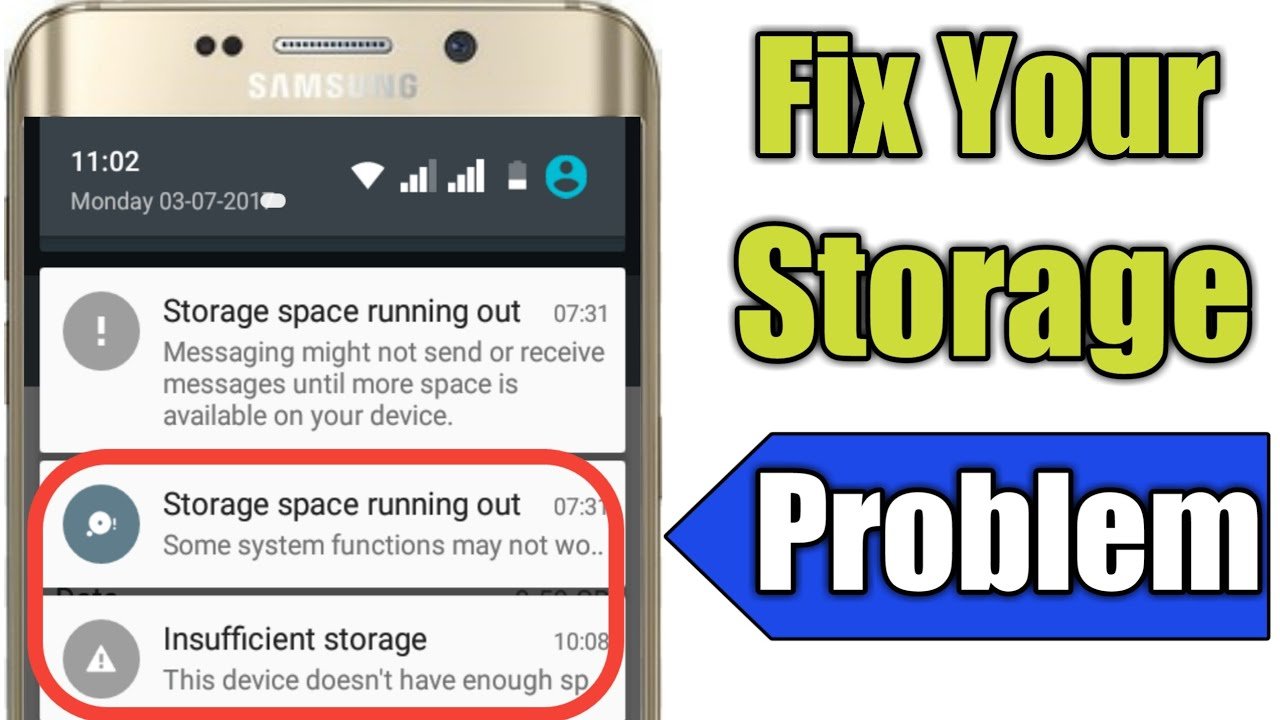
Overview Table: Storage Cleaning at a Glance
| Device Type | Common Storage Hogs | Visible Symptoms | Core Cleaning Strategy |
|---|---|---|---|
| Android phone | App cache, media files, WhatsApp data | Lag, low storage warnings | Cache cleanup, media management |
| iPhone | Photos, videos, app data | Storage full alerts, slow apps | iCloud optimization, app review |
| Windows laptop | Temporary files, old updates, apps | Slow boot, disk full | Disk cleanup, app removal |
| Mac laptop | System data, caches, large files | Performance drop, low space | Storage optimization, manual cleanup |
| All devices | Downloads, duplicates | Reduced performance | File review and deletion |
Understanding Why Storage Gets Full Over Time
Clean Storage filling up is not a sudden event. It is the result of daily digital behavior. Every photo clicked, every app installed, every update downloaded adds data to your device. Most users focus on visible files like photos and videos, but hidden data plays an equally important role.
Modern operating systems are designed to cache data for speed. While this improves short-term performance, long-term accumulation leads to clutter. Devices continue functioning, but efficiency drops quietly until storage warnings appear or performance declines.
Understanding how storage fills up is the first step toward cleaning it properly without risking data loss.
Storage problems rarely appear overnight. They build quietly, file by file, app by app, update by update. One day your phone refuses to take new photos, and your laptop starts showing low storage warnings or slowing down during simple tasks. What feels like a sudden issue is actually the result of months or years of accumulated digital clutter.
Modern phones and laptops are designed to manage storage intelligently, but no operating system can compensate indefinitely for limited free space. Cached files grow, apps store hidden data, downloads pile up, and system files expand with every update. As storage fills up, performance drops, apps become unstable, and essential background processes struggle to function efficiently.
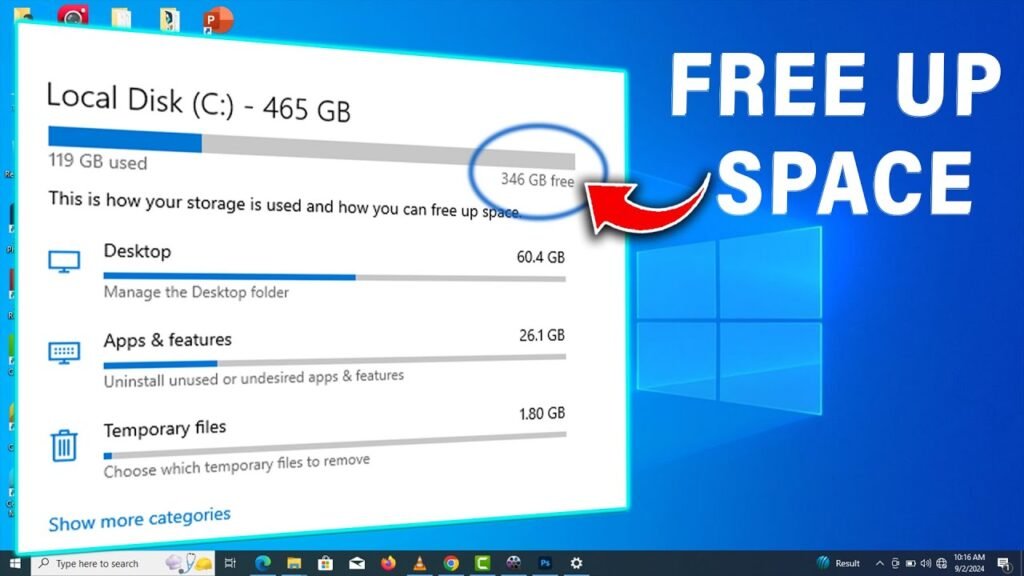
How Storage Affects Performance on Phones and Laptops
Clean Storage is not just about capacity. It directly impacts speed, responsiveness, and stability.
Relationship Between Storage and System Performance
Operating systems require free space to create temporary files, manage updates, and handle memory swapping. When storage is nearly full, these processes slow down or fail.
Phones and laptops may still turn on, but apps take longer to load, background tasks stall, and crashes become more frequent.
Solid-State Storage and Free Space Dependency
Most modern devices use solid-state storage. SSDs and flash memory perform best when there is sufficient free space. When storage is nearly full, read and write operations become less efficient.
This leads to slower app launches, lag during file operations, and delayed system responses.
Cleaning Storage on Android Phones
Identifying What Is Using Space
Android provides a detailed Clean Storage breakdown. This shows how much space is consumed by apps, media, system files, and cached data.
Large usage in apps or media usually indicates unnecessary files that can be safely removed.
Clearing App Cache Safely
Apps store temporary files to load faster. Over time, cache files grow unnecessarily large.
Clearing cache does not delete personal data. It only removes temporary files, freeing space instantly without harming app functionality.
Managing Media Files and Downloads
Photos, videos, and downloads are the biggest contributors to Clean Storage usage. Screenshots, forwarded videos, and duplicate images accumulate silently.
Reviewing and deleting unnecessary media files can recover significant space quickly.
Cleaning Messaging App Storage
Messaging apps store images, videos, voice notes, and documents locally. Group chats are often the biggest storage consumers.
Manually deleting media from chats or adjusting auto-download settings prevents future clutter.
Removing Unused Apps
Many apps remain installed long after they stop being used. These apps occupy Clean Storage and may run background processes.
Removing unused apps improves both Clean Storage availability and performance.
Cleaning Storage on iPhones
Understanding iPhone Storage Categories
iOS categorizes Clean Storage into apps, photos, media, system data, and messages. System data may appear large due to cached files and logs.
This data grows over time but can be managed indirectly through usage habits.
Optimizing Photo and Video Storage
Photos and videos consume the most space on iPhones. High-resolution media increases Clean Storage usage rapidly.
Enabling Clean Storage optimization keeps full-resolution files in the cloud while storing lighter versions locally.
Managing App Data and Documents
Some apps store large offline files, downloaded videos, or internal documents. Reviewing app Clean Storage usage reveals which apps consume excessive space.
Deleting and reinstalling such apps often clears hidden data.
Clearing Browser and App Cache
While iOS does not offer a global cache clear option, individual apps allow cache removal. Browsers, streaming apps, and social media apps often store significant cached data.
Clearing this data can free space without losing essential information.
Cleaning Storage on Windows Laptops
Understanding Storage Breakdown in Windows
Windows divides Clean Storage into system files, apps, documents, and temporary data. Temporary files and update leftovers often consume unnecessary space.
These files are safe to remove and regenerate automatically.
Using Built-In Disk Cleanup Tools
Windows includes utilities that identify temporary files, logs, and update leftovers. These tools safely remove data without affecting personal files.
Regular use prevents gradual Clean Storage buildup.
Managing Installed Applications
Old software, trial programs, and unused tools occupy large amounts of disk space. Some applications also store data in multiple locations.
Uninstalling unused programs reclaims space and reduces background resource usage.
Cleaning Downloads and Duplicate Files
The Downloads folder often becomes a dumping ground for installers, PDFs, and compressed files.
Reviewing and organizing this folder periodically prevents unnecessary Clean Storage consumption.
Cleaning Storage on Mac Laptops
Understanding macOS Storage Categories
macOS separates Clean Storage into apps, system data, documents, and media. System data includes caches, logs, and temporary files.
This category can grow unexpectedly large and impact available space.
Using Storage Optimization Features
macOS includes built-in Clean Storage optimization options that help identify large files, unused apps, and clutter.
These tools provide safe recommendations without deleting critical system files.
Clearing Cache and Temporary Files Manually
Caches help apps load faster but grow over time. Removing old cache files can free space and improve performance.
Care should be taken to remove only user-level caches, not system-critical files.
Managing Large Files and Old Backups
Large files such as videos, archives, and backups consume space quickly. Old device backups stored locally are common Clean Storage hogs.
Deleting outdated backups recovers substantial Clean Storage.
Cross-Device Storage Cleaning Habits
Cloud Storage and Sync Awareness
Cloud syncing often duplicates files across devices. Photos, documents, and media stored locally may already exist in the cloud.
Understanding sync behavior prevents unnecessary duplication.
Handling Duplicate Files Efficiently
Duplicate files arise from downloads, backups, and file transfers. Identifying and removing duplicates restores space without data loss.
Manual review ensures important files are preserved.
Managing Offline Content
Streaming apps and document readers allow offline downloads. These files remain stored until manually removed.
Reviewing offline content regularly prevents unnoticed storage usage.

Technical Considerations While Cleaning Storage
Avoiding Deletion of Critical System Files
System files are essential for device stability. Deleting unknown system folders can cause crashes or boot issues.
Storage cleaning should focus on user-generated data and application-level files.
Understanding Cache Regeneration
Clearing cache frees space temporarily, but cache files regenerate over time. This is normal behavior.
Regular but moderate cleaning balances performance and convenience.
Storage Wear and Longevity
Solid-state storage has a limited write lifespan. Excessive deletion and rewriting can marginally affect longevity.
Smart storage management focuses on meaningful cleanup rather than constant clearing.
Signs That Storage Cleanup Has Improved Performance
Faster App Launches
Apps load quicker when storage operations face less congestion.
Reduced Lag and Freezing
System responsiveness improves as background processes gain adequate space to function.
Fewer Storage Warnings
The absence of constant storage alerts indicates healthier free space levels.
Long-Term Storage Maintenance Strategies
Adopting Minimal Digital Habits
Installing fewer apps, saving fewer unnecessary files, and reviewing downloads regularly prevents clutter buildup.
Digital minimalism improves device efficiency.
Scheduling Monthly Storage Reviews
A quick monthly review helps catch storage issues early before they impact performance.
Consistency is more effective than occasional deep cleaning.
Accepting Storage Limitations
Every device has physical storage limits. When usage consistently exceeds capacity, upgrading storage or devices becomes practical.
Recognizing this avoids endless cleanup cycles.
Final Thoughts: Storage Cleaning as Digital Hygiene
Cleaning storage on your phone and laptop is not merely a corrective action taken when space runs out. It is a foundational practice that determines how efficiently your devices perform over time. Storage directly influences system speed, app stability, update reliability, and even hardware longevity. When free space becomes scarce, operating systems lose the flexibility they need to manage temporary files, memory swapping, and background processes effectively.
The most important takeaway is that meaningful storage cleaning is strategic, not aggressive. Deleting files without understanding their role can create new problems, while ignoring hidden data allows clutter to return quickly. Focusing on user-generated content, unused applications, cached files, and outdated downloads delivers real results without risking system integrity. This approach applies equally to phones and laptops, regardless of platform or brand.
Cleaning storage is not a one-time task. It is a form of digital hygiene that keeps phones and laptops responsive, stable, and reliable.
Understanding what fills storage, knowing what can be safely removed, and developing smart habits ensures devices perform well throughout their lifespan.
With a balanced approach that combines awareness, technical understanding, and routine maintenance, users can keep their devices clutter-free and efficient without risking data loss or system instability.